In this unit, you will…
- Learn to program the BBC micro:bit using the Blocks Editor to display images and create basic games.
- Develop an understanding of core computer science concepts, including algorithms, decomposition, abstraction, and variables.
- Transition to writing text-based code using Python, while also practicing how to document and improve your work through peer reviews and development logs.
🎯 Learning Objectives
- Understand the purpose of the micro:bit and what it can do
- Create a 5 × 5 image and display it on the micro:bit
- Create a Guess the Number game.
💬 Key Vocabulary
- micro:bit
- programming
- blocks editor
- LEDs
- input
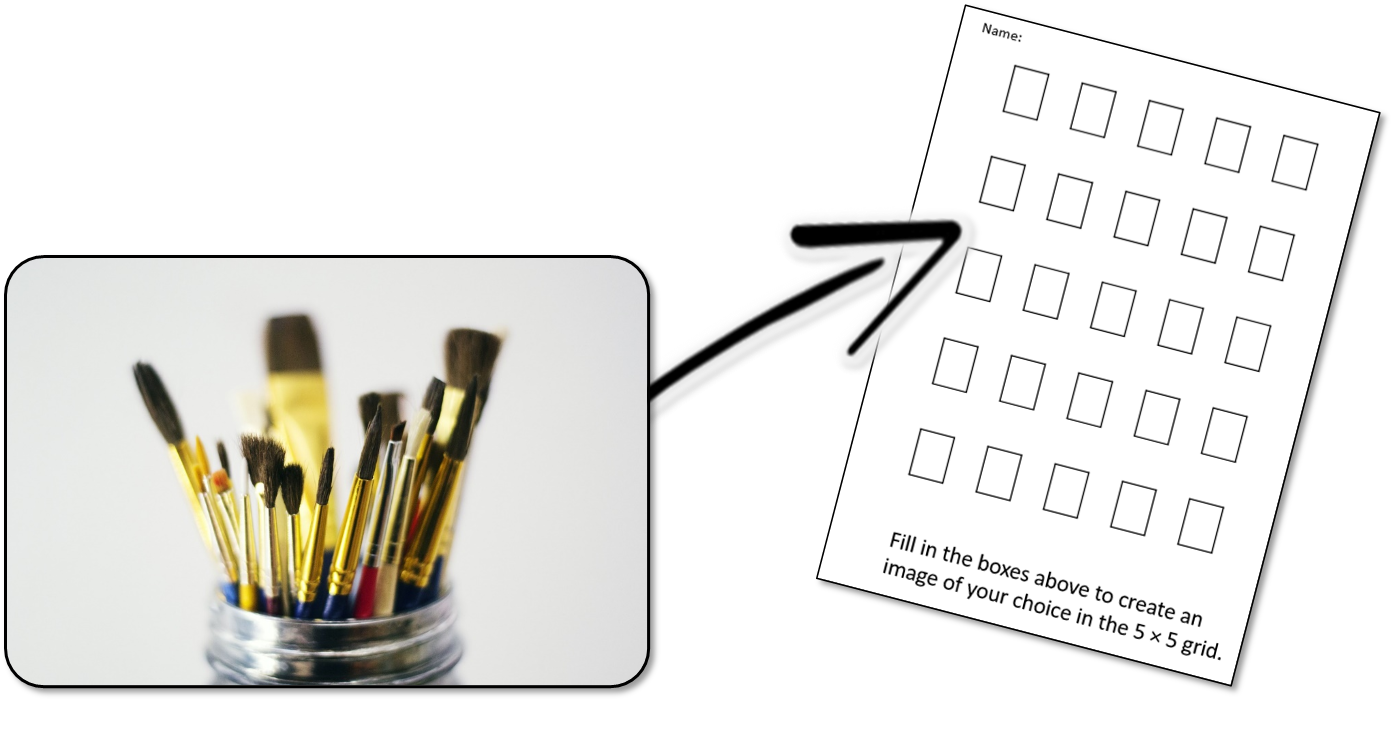
📝 Starter Activity – 5×5 grid
Download the Starter Activity and fill in the boxes to draw an image; for example, a smiley face, a shape or a pattern.
📖 Introduction to the BBC micro:bit
Imagine having a tiny, pocket-sized computer that you can code to do almost anything! That’s exactly what the BBC micro:bit is.
It is a mini-computer designed to introduce you to programming and show you what a computer can do. Here are some of the cool features you will use:
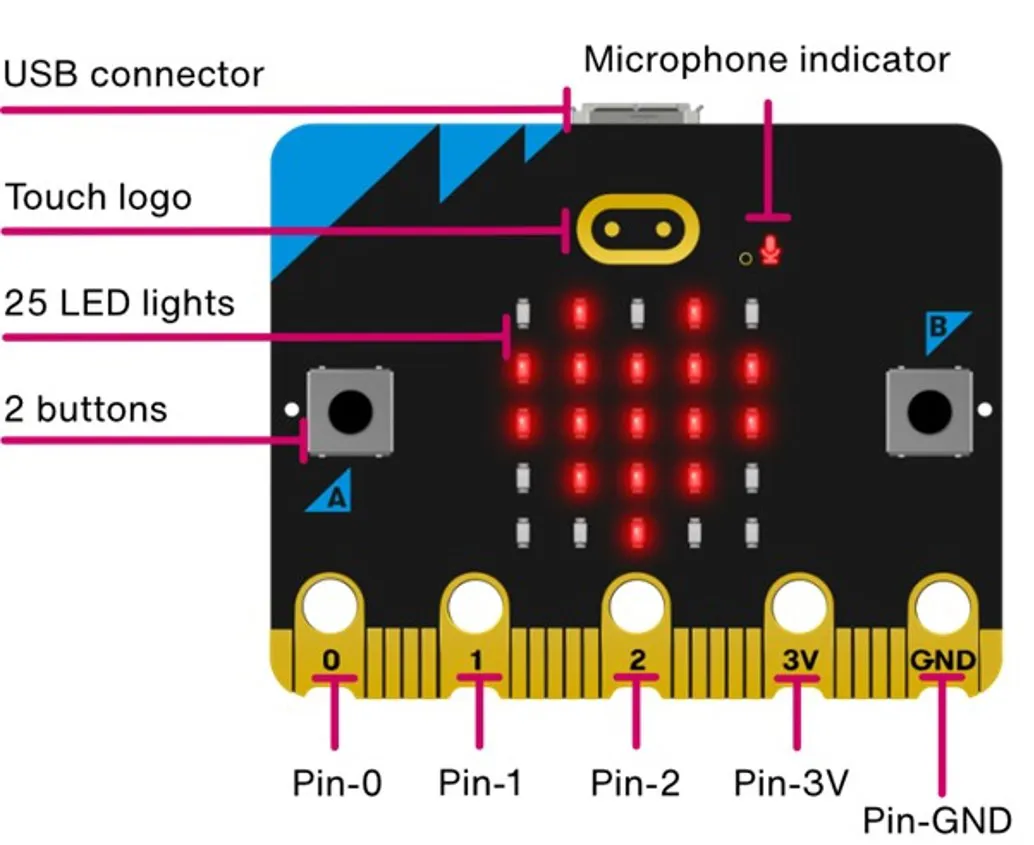
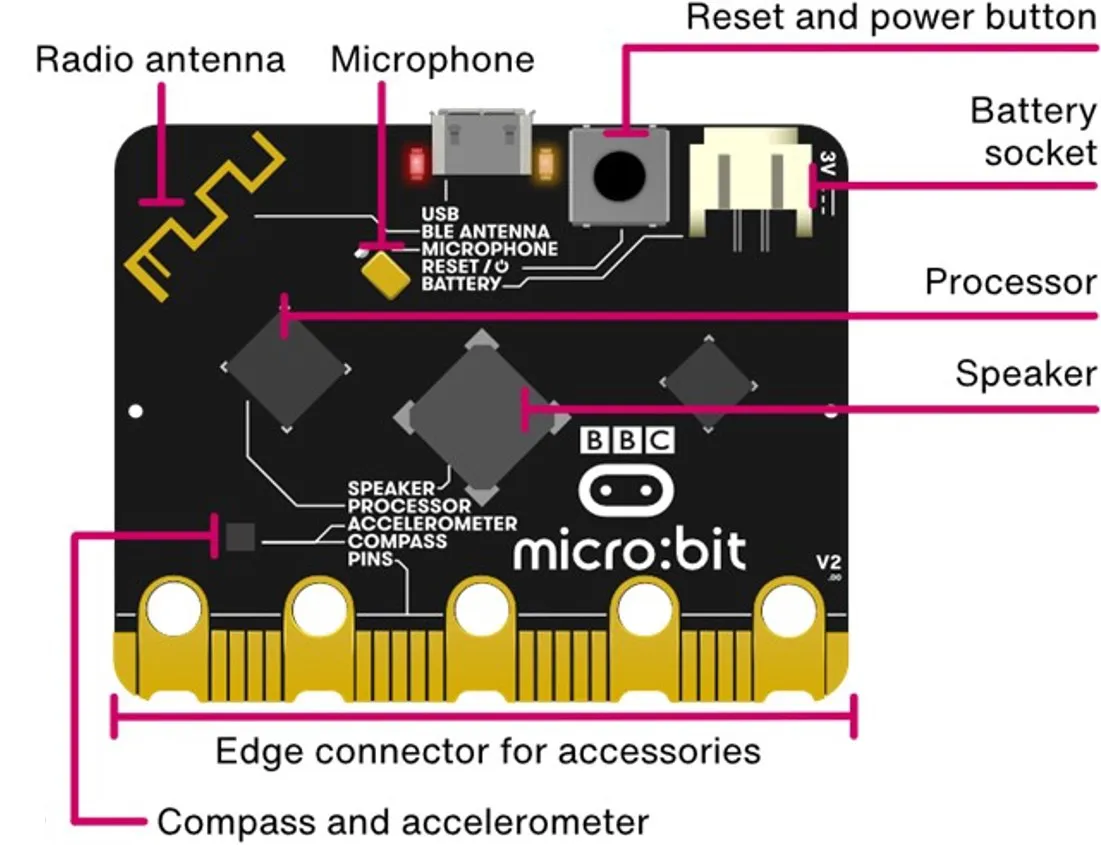
You will start off by using the blocks editor which is very similar to Scratch and by the end of the topic you will have tried out the Python programming language.
📝 Level 1 – Getting started with the micro:bit
Go to https://makecode.microbit.org/ this will be the website you will use to code the micro:bit in this topic.
Then follow the Level 1 worksheet to see how to create your first program with your micro:bit
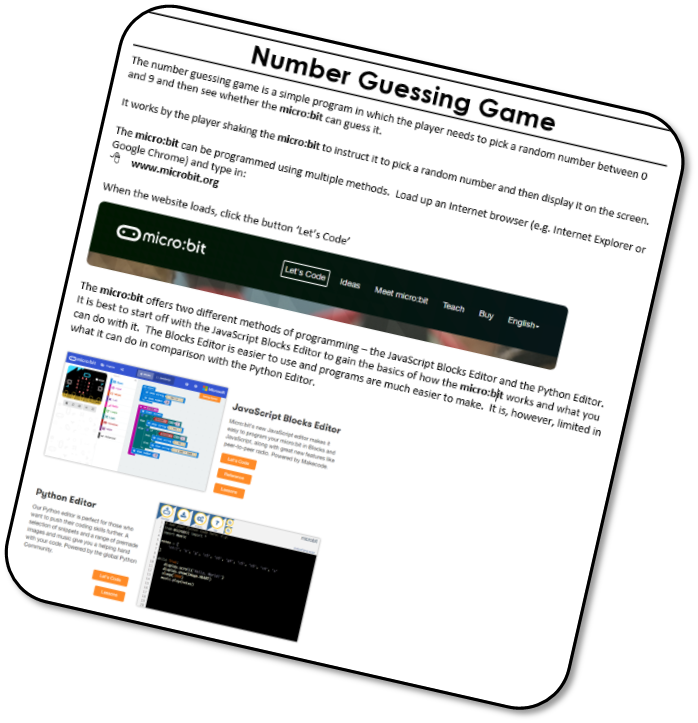
📝 Level 2 – Number guessing game
- The objective of the game is to see whether a micro:bit can guess the number in your head.
- Pick a number between 0 and 9, then shake the micro:bit to tell it to pick a random number and display it on the screen. If the micro:bit guesses the same number as you, it wins and gains a point. If it does not, you win and gain a point.
- The first one to gain 10 points wins the game.
- Download the Level 2 activity sheet to see how to make the game.
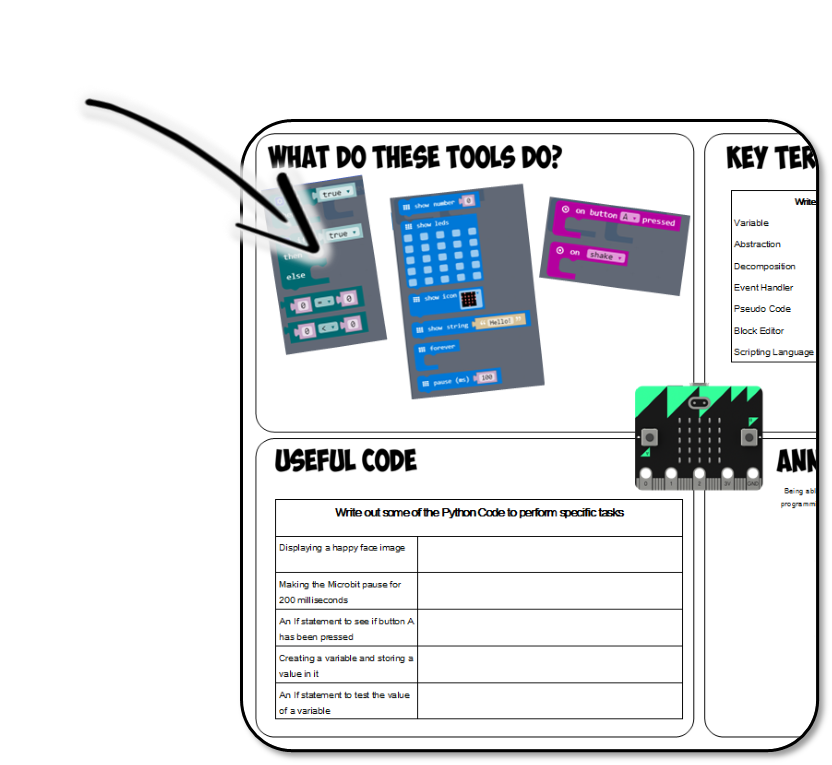
📝 Level 3 – What have you learnt?
- Using the Level 3 worksheet, answer the questions in the top left-hand corner by writing straight onto the sheet.
- What do these different tools (which you have used today) do?
- If you think you can answer any of the questions in the other three corners then give them a try.
🏅 Level up
🥇 Level 1
- Use the snipping tool to screenshot the Makecode website showing your Level 1 code upload it to Teams.
🥈 Level 2
- Use the snipping tool to screenshot the Makecode website showing your Level 2 code upload it to Teams.
🥉 Level 3
- Upload the Level 3 activity sheet with at least the top left corner completed to Teams.
In this lesson, you…
- Understood the purpose of the micro:bit and what it can do
- Created a 5 × 5 image and display it on the micro:bit
- Created a Guess the Number game.
Next lesson, you will…
- Use the micro:bit to develop your understanding of creating more complex programs.