In this unit, you will…
- Navigate spreadsheets, use cell references, and apply formatting.
- Perform calculations using basic formulas (+, -, *, /) and the autofill tool.
- Understand data and collect it.
- Analyze data with functions (SUM, MAX, MIN, COUNTA, AVERAGE, COUNTIF, IF) and create charts.
- Sort, filter, and apply conditional formatting to data.
In this lesson, you will…
- Identify columns, rows, cells, and cell references in spreadsheet software.
- Use formatting techniques in a spreadsheet.
🎯 Learning Objectives
- Identify columns, rows, cells, and cell references in spreadsheet software.
- Use formatting techniques in a spreadsheet.
💬 Key Vocabulary
- Data
- cell
- cell reference
- row
- column
- range
- select
📝 Starter Activity – Olympic Medals
Download the Starter Activity below and answer the questions about the Olympic medal data.

📖 Cells
- Cells are spaces that hold data
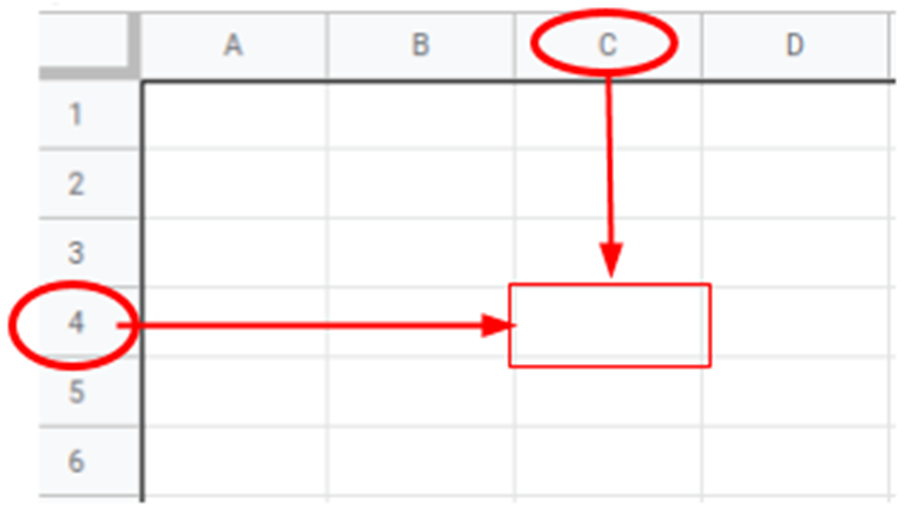
- A cell reference tells you the location of a cell
- Think of a cell like a seat in a stadium, cinema or theatre.
- They each have a row and seat (column) number to help you find the right one.

Each cell reference is made up of…
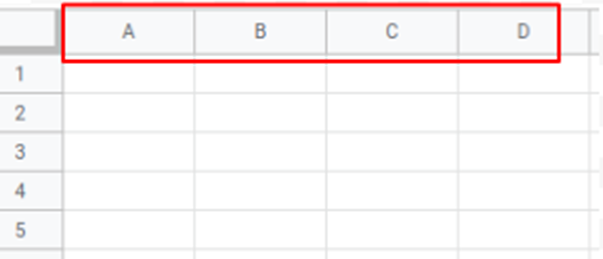
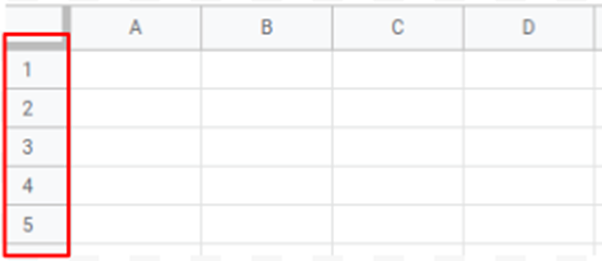
This is cell C4:
📝 Level 1 – Cell Bingo
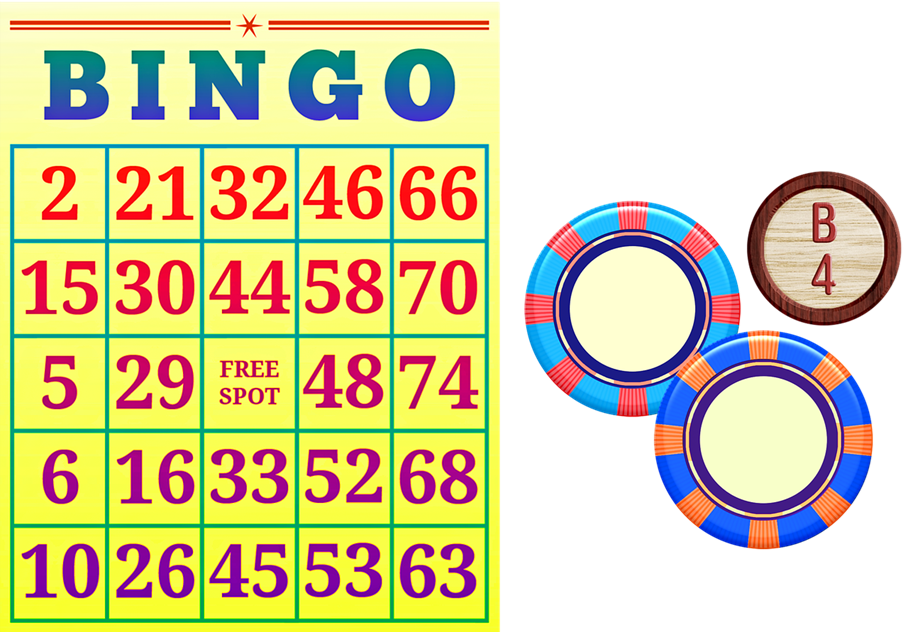
Download the Level 1 Activity below follow the instructions and place five 0s in the green area using Excel.
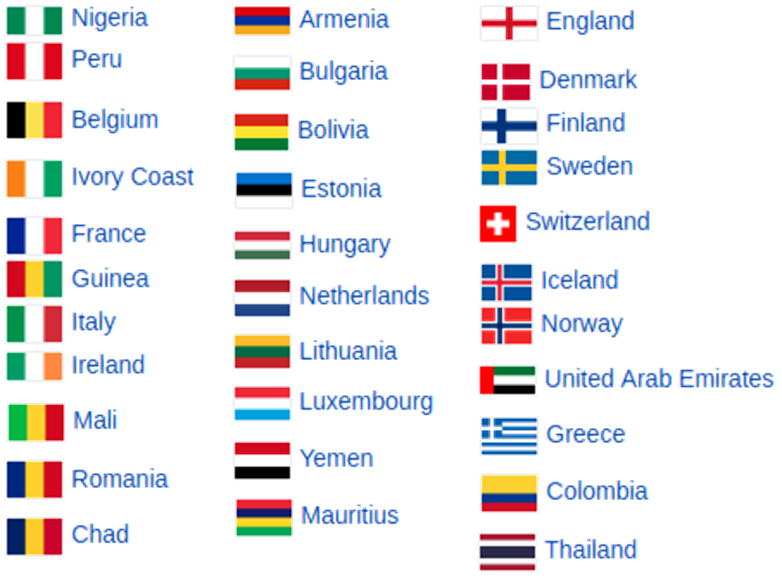
📝 Level 2 – Spreadsheet Flags
Download the Level 2 Activity below to create a variety of flags using cell formatting in Excel.
📝 Level 3 – Pixel Art
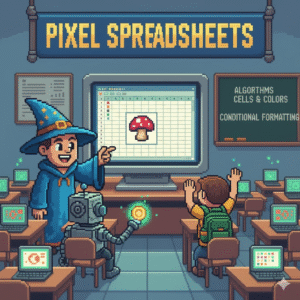
Download the Level 3 Activity below to create some instructions so someone else can recreate a pixel art image in Excel.
In this lesson, you…
- About cell referencing
- How to apply colour to individual cells
Next lesson, you will…
- Enter data into cells
- Use basic formulas for calculations
🏅 Level up
🥇 Level 1
- Complete the Level 1 – Cell Bingo activity and upload it to the Teams assignment.
🥈 Level 2
- Complete the Level 2 – Spreadsheet Flags activity and upload it to the Teams assignment.
🥉 Level 3
- Complete the Level 3 – Pixel Art activity and upload it to the Teams assignment.