🎯 Learning Objectives
- Show understanding of the planning process by planning and creating an application
- Use either blocks or Python coding to create an application.
💬 Key Vocabulary
- delay
- milliseconds
- development log
- python
- editor
- code
📝 Starter Activity – Ruler Reaction Game
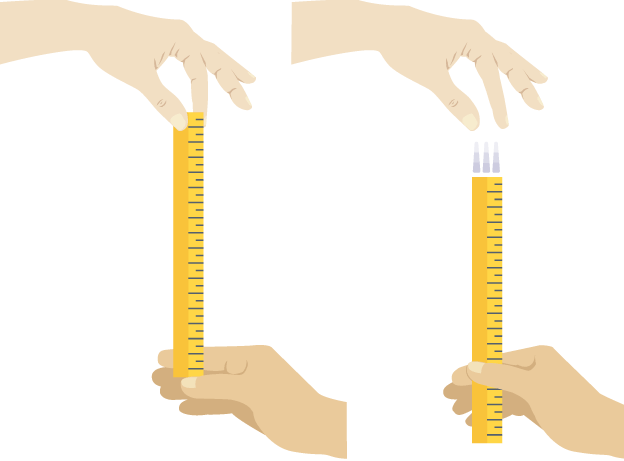
- In pairs, play the ‘ruler reaction test’ game. Ask your partner to drop a ruler through your fingers. Can you catch it before the end of the ruler?
- What is the quickest time (which means the shortest distance) you can achieve?
- If you don’t have a ruler then use this website to time your reactions.
📖 A Reaction Timer
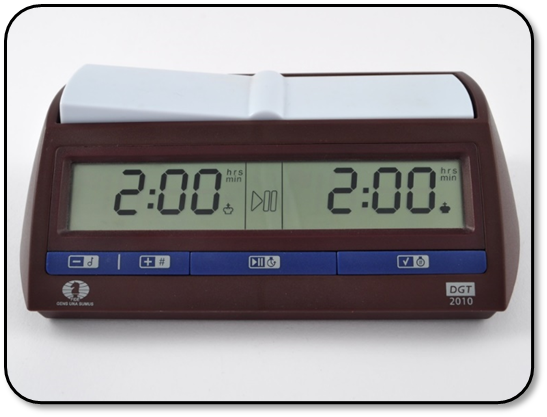
- A reaction timer is a system to test/time the reaction of the user.
- One user presses the top left button of the timer to start it. The other user presses the top right button of the timer to stop it. The display shows the speed of the second user’s reactions.
- We are going to create a version of this using the micro:bit. First using the block editor and then using the Python programming language.
📝 Level 1/2 – Coding a Ruler Reaction Game
Download the worksheet below to firstly create a simple block editor version of a reaction timer and then a more complex one using Python. You should upload screenshots of the block code for Level 1 and the Python version for Level 2.
📝 Level 3 – Documenting what you’ve done
- Remember detail is the key to making your notes useful to revise from.
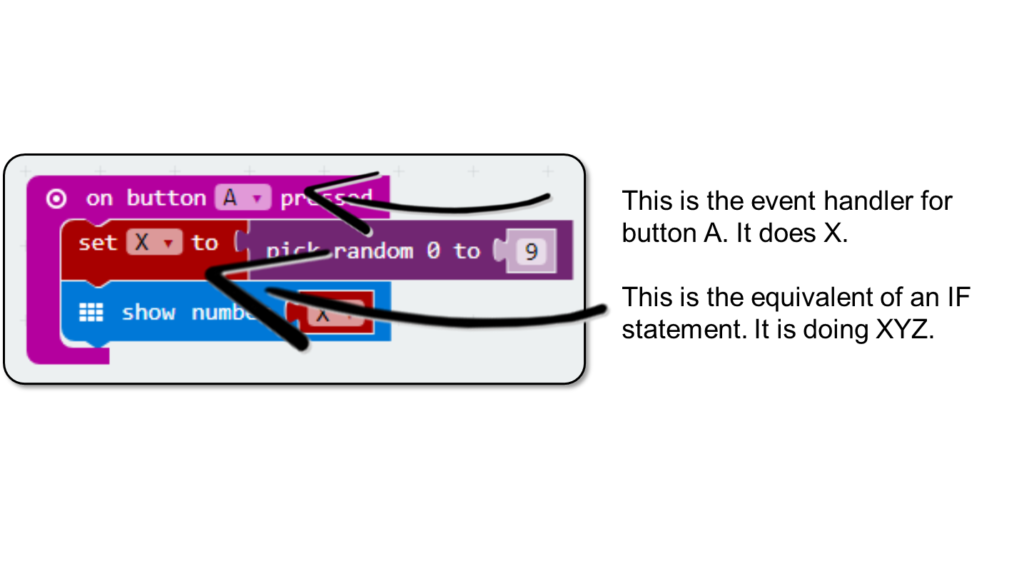
- Take screen shots of your reaction timer code and put them into the development log file you have been adding to over the last few lessons.
- Remember to annotate them!
In this lesson, you…
- Created a reaction timer using blocks and Python code.
- Explained and annotated your block and Python code using the development log.
Next lesson, you will…
🏅 Level up
🥇 Level 1
- Complete the code as shown in the worksheet and then screenshot it and upload to Teams.
🥈 Level 2
- Write down the Python code from the worksheet into Makecode and make sure it works correctly, upload a screenshot of your code to Teams.
🥉 Level 3
- Upload your development log to Teams.