🎯 Learning Objectives
- To use the micro:bit to develop understanding of problem solving and application documentation.
💬 Key Vocabulary
- pseudocode
- development log
- character
- variable
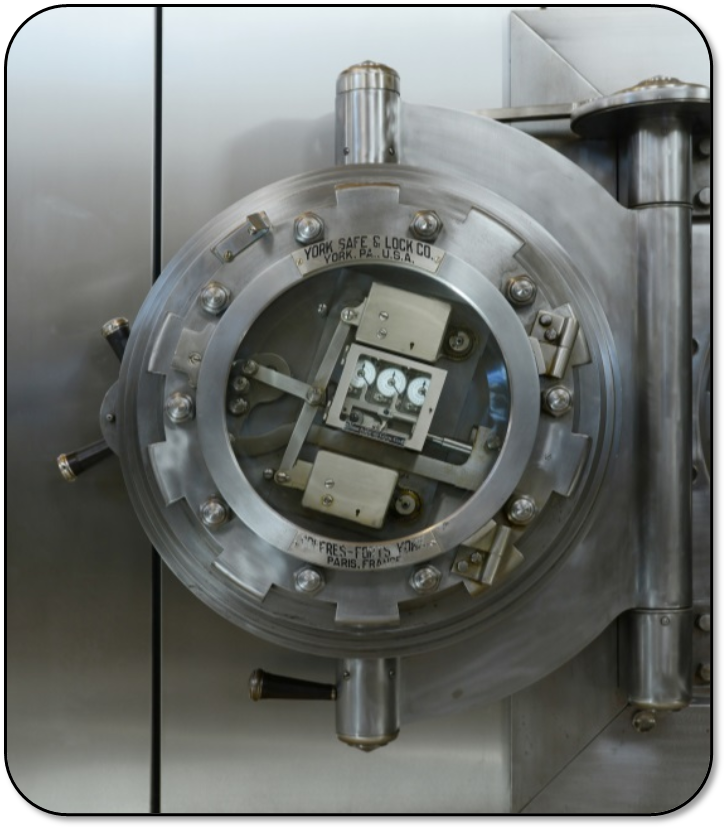
📝 Starter Activity – Breaking into a bank
- How does a bank safe lock work?
- What do you need to do in order to use a basic combination lock?
📝 Level 1 – Time to plan
- Programming isn’t just about following step-by-step guides; you have to start thinking about solving problems and what tools you are going to need to create a solution.
- Use the Level 1 – ‘What is It Doing?’ sheet to describe what these code blocks are doing.
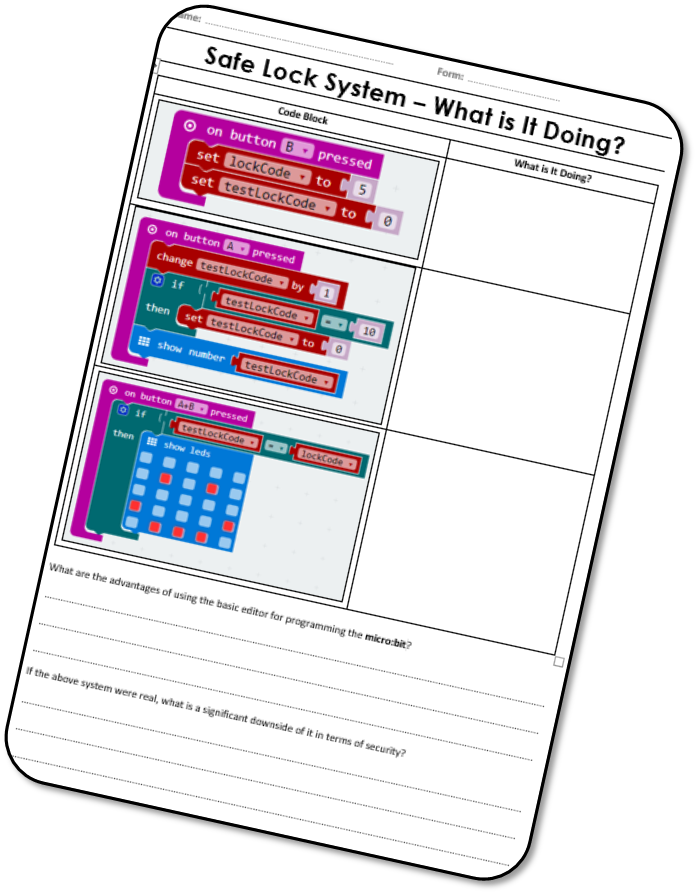
📝 Level 2 – Time to code
- Create a basic safe lock system using the Blocks Editor which uses a number between 0 and 10 to ‘open’ the lock.
- Use the Level 2 worksheet to help you, also complete the two extension tasks as well.
- Go to https://makecode.microbit.org/ like you’ve done before to start coding, create a new project called “Lesson 3 – Crack the safe”.
📖 Pseudocode
- This is a Computer Science term. It means “simplified code which is easy for a human to read and is used for planning the logic and flow of a program.”
- A computer can’t run or understand it, but you can use it to test the logic of a program.
- The advantage of using the code blocks is that they are very simple to use and display a program in a basic, logical and easy-to-follow way.
- A downside of the code blocks, however, is that they are very big.
- Pseudocode is written in plain English and is easy for a human to read. It represents the logic and flow of a program.
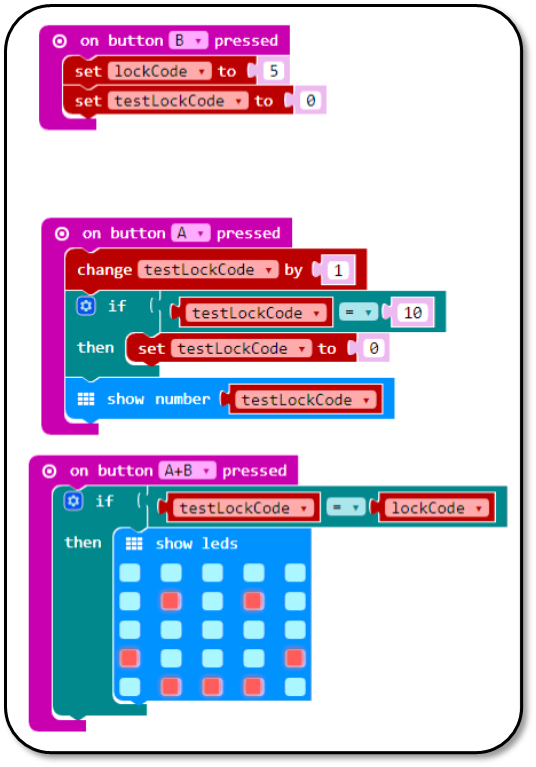
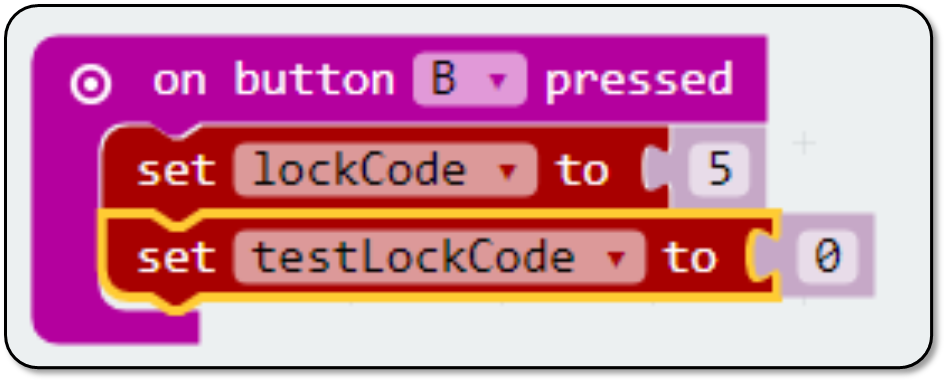
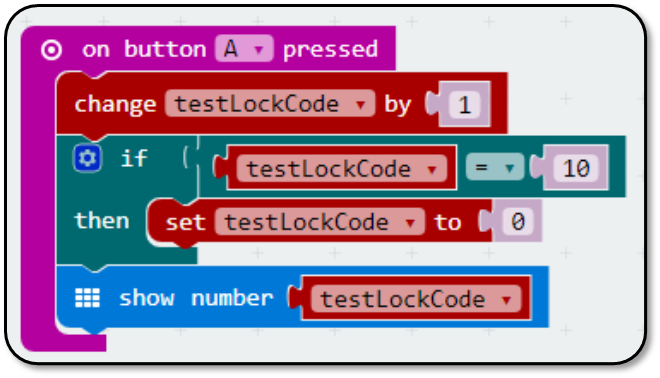
Here are some examples of pseudocode and makecode equivalents.
Pseudocode
IF button_b isPressed THEN
SET lockCode to 5
SET testLockCode to 0
Makecode blocks
Pseudocode
IF button_a isPressed THEN
ADD 1 to testLockCode
IF testLockCode = 10 THEN
SET testLockCode to 0
OUTPUT testLockCode on screen
Makecode blocks
📝 Level 3 – Development Log
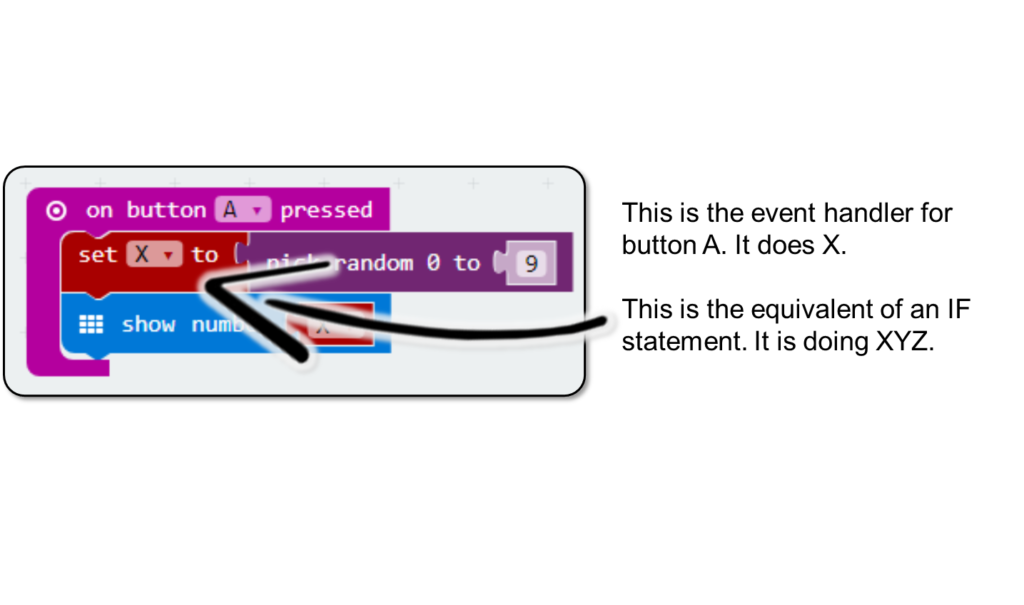
- Take a screenshot of your Safe Lock micro:bit code. Put it into a new Word document and use textboxes and arrows to explain what each section is doing.
- Remember the decomposition of the problem – this would be a logical way to annotate it.
📝 Plenary
- What have we learnt today?
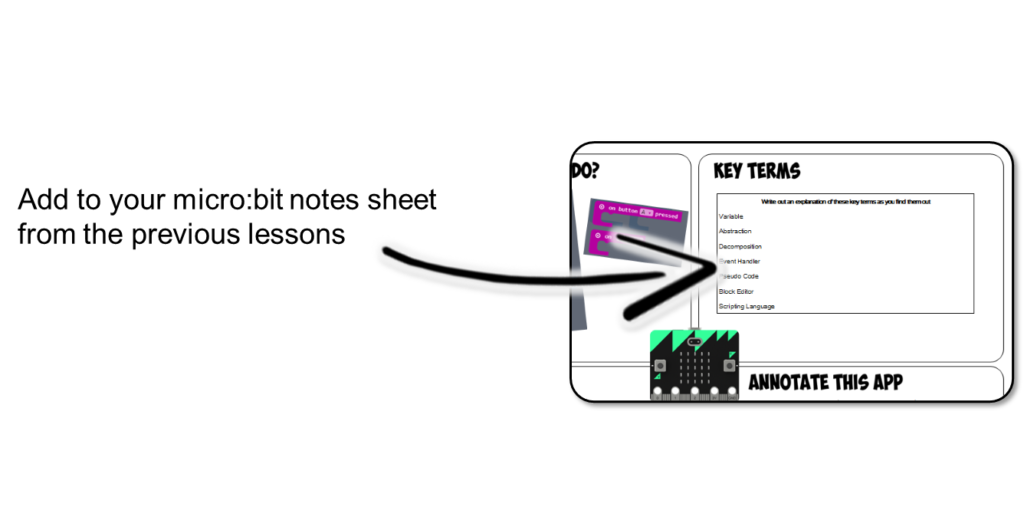
- Can you add any notes to your micro:bit notes sheet, such as some of the limitations of the Block Editor or what Pseudo Code is and how it can help develop applications?
In this lesson, you…
- Planned and created code for a safe lock system
- Annotated your code in a development log
- Used if statements in your code to choose which outcome should occur.
Next lesson, you will…
- critically reflect on the Python code you made for your BBC micro:bit.
- evaluate your code to identify any bugs and ensure it meets the project requirements.
- use the self review to help consolidate your understanding of fundamental programming concepts.
🏅 Level up
🥇 Level 1
- Complete the worksheet to plan what your code will do, then upload it to Teams.
🥈 Level 2
- Complete the code as shown in the worksheet and then screenshot it and upload to Teams.
🥉 Level 3
- Upload your development log to Teams.