🎯 Learning Objectives
- Understand and be able to use tags to format data in a web page.
- Understand that web pages are linked by hyper links.
- Be able to create hyper links to external web sites as well as to local files, such as images and files
💬 Key Vocabulary
- Hyper link
- Domain name
- HTML (HyperText Markup Languge)
- Tags
- HTML element
- HTML paragraph element
- Title element
📝 Code It
Step 1
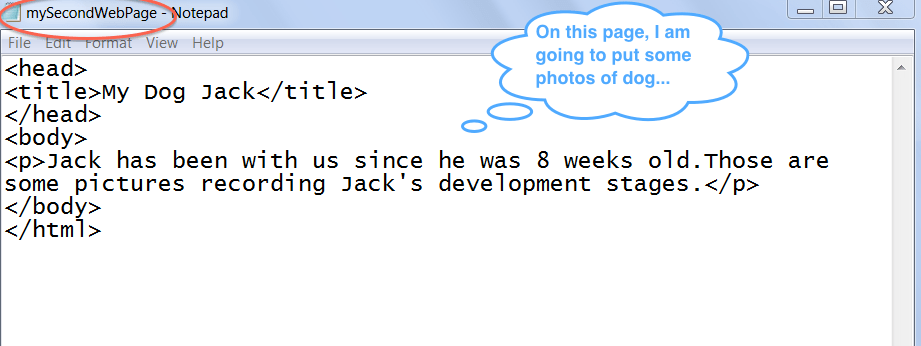
- Create a second web page, follow the instructions in the previous lesson for the web page
index.html. - Save your second page as
mySecondWebPage.htmlinside the same folder as yourindex.html. - This is my second web page. Yours may be slightly different:
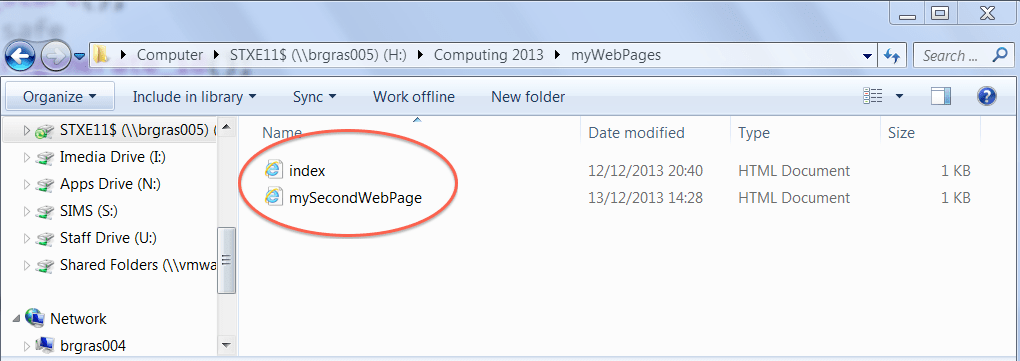
You should now have two html files in your folder:
Step 2
We will now add a hyperlink on the body of our first web page to link it to our second web page.
- Open the web page
index.html. - Type a line like the following in the body section below the
</p>tags :
<a href="mySecondWebPage.html">Click here to see many photos when Jack growing up!</a>
📖 Learn It
In between the <a> and </a> tags is where you put the hyperlinked text. A hyperlinked text when clicked will take you to another page. In this we want to go to our second web page.
The href is called an attribute. An attribute is used to give more information about a tag. In this case it tells the browser where our second page is. href stands for hypertext reference.
Below is an example of how your index.html will now look, you may have different wording.
<head>
<title>My Dog Jack</title>
</head>
<body>
<p>My dog Jack is a minature schnauzer. He is 8 months old.</p>
<a href="mySecondWebPage.html">Click here to see many photos when Jack growing up!</a>
</body>
</html>
📝 Code It – Step 3
- After you added the hyperlink in your
index.htmlfile, save it. - Go to your folder, open the
index.htmlfile by either double clicking on it or right click then choose Open with a browser of your choice. You should see something similar to the image shown below.
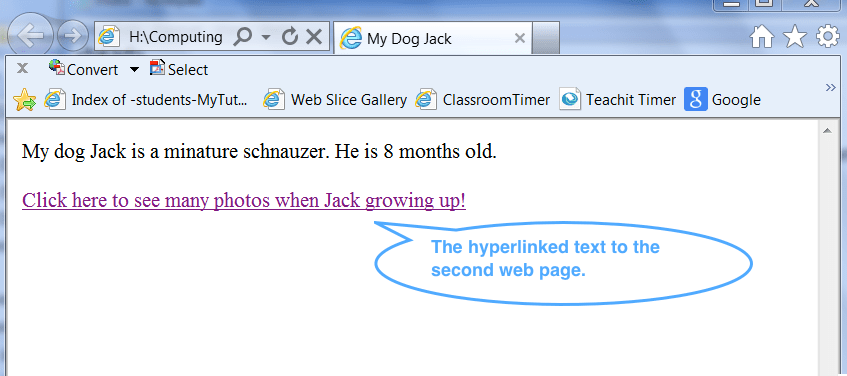
3. Test if the hyperlink works by clicking on it. You know it is working if your second page opens up in a browser window.
4. After you added the hyperlink in your index.html file and have tested it successfully, try to add a hyperlink in your second web page that links to your first page independently first.
📝 Expanding Jack’s Web World!
You’ve already created two web pages about Jack: index.html (introducing Jack) and mySecondWebPage.html (which will show photos of Jack growing up). Now, let’s make them even more interactive!
Adding an External Link
- Open your
mySecondWebPage.htmlfile in Notepad++. - Imagine you want to link to a website about Miniature Schnauzers so people can learn more about Jack’s breed. Find a suitable website (you can search for “Miniature Schnauzer information”).
- Below any existing content in the
<body>section ofmySecondWebPage.html, add a new paragraph using the<p>tags. - Inside this paragraph, write the text: “Want to learn more about Miniature Schnauzers?”
- Now, turn this text into a hyperlink to the website you found. Remember the
<a>tag and thehrefattribute! Your code should look something like this (replace the example URL with the one you found): <p><a href="[insert the website address here]">Want to learn more about Miniature Schnauzers?</a></p>- Save your
mySecondWebPage.htmlfile. - Open
index.htmlin your web browser. Click the link tomySecondWebPage.html. Once you are on the second page, test if your new link to the Miniature Schnauzer website works by clicking on it.
In this lesson, you…
- Understood and are able to use tags to format data in a web page.
- Understood that web pages are linked by hyper links.
- Are able to create hyper links to external web sites as well as to local files, such as images and files
Next lesson, you will…
- Understand that CSS is a model for formatting HTML web pages
- Understand that CSS organises web contents in “boxes” – the box model
- Be able to apply CSS box model to an element of a web page
🏅 Level up
🥇 Level 1
- You have added a working hyperlink to the
index.htmlpage that links to themySecondWebPage.htmlpage.
🥈 Level 2
- You have added a link to a external website about miniature Schnauzers.
🥉 Level 3
- Change the font of part of your website to Arial.
- You will need to search for “HTML fonts” on Google to see how to do this.