🎯 Learning Objectives
- Understand what a computer network is
- Explore different types of computer networks
- Discover what a router is and how it connect devices together
- Understand what packets are and how we use them to transfer data
Key Vocabulary
- network
- communication
- router
- packets
- header
- topology
Starter Activity – What is a Computer Network?
- Open a new PowerPoint file and write a title of “Packets and Routers”.
- Then on a new slide, write a definition of what you think a computer network is with your current knowledge.
What is a Computer Network?
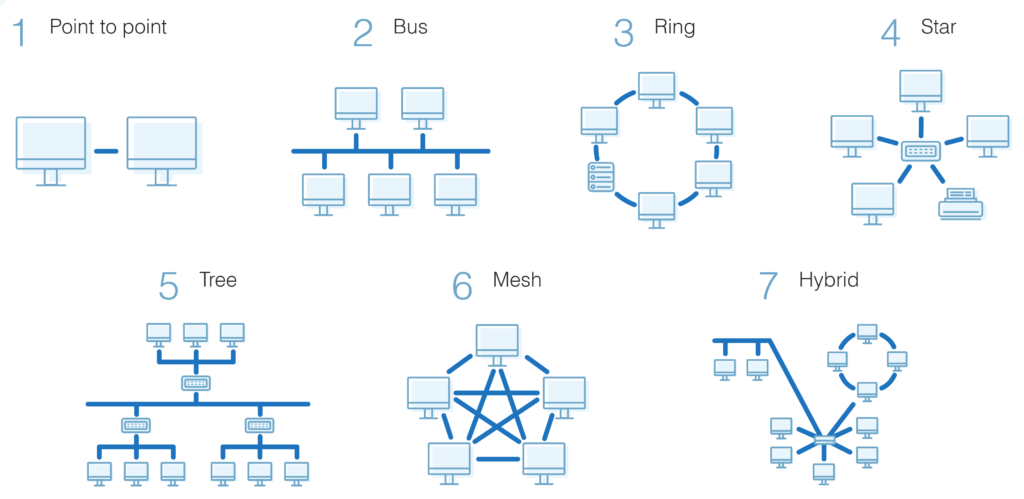
- A Computer Network is when we connect two or more computers together so they can communicate with each other.
- There are many different types of network, with names like mesh, bus and ring.
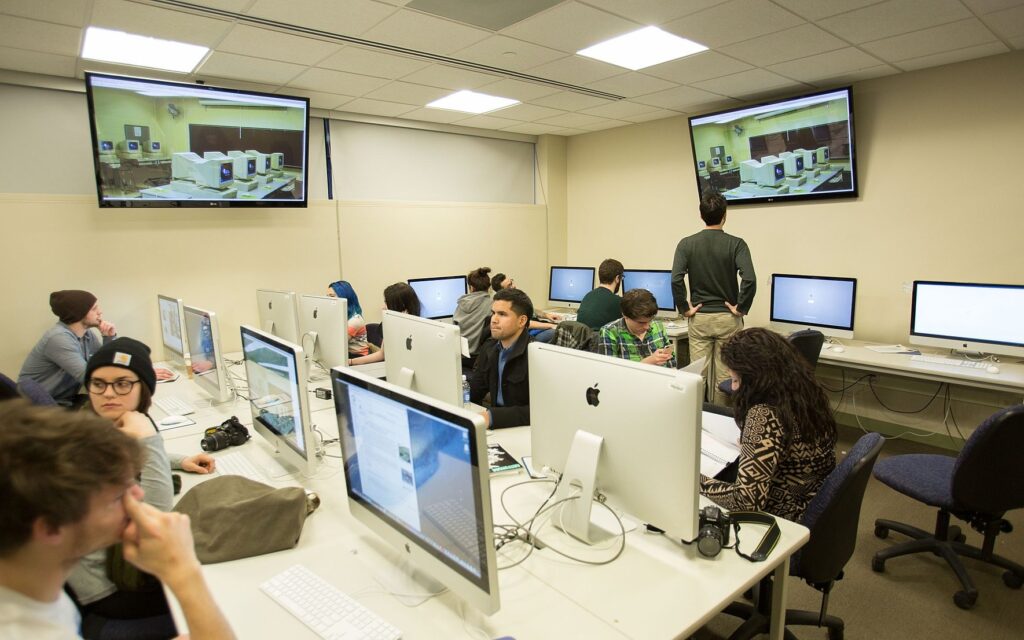
- The star network topology is the type you will have used the most, it is also the type used here at school.
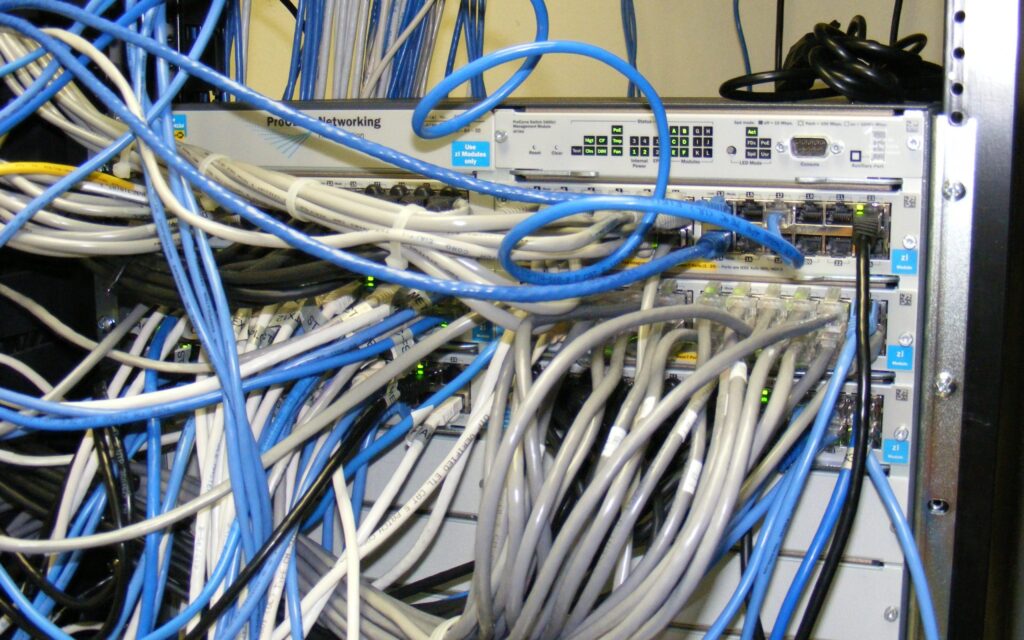
- Your computer is connected by copper ethernet cables to a central server elsewhere in the school.
- Having watched the video, produce a summary of it for your notes.
🖧 Routers
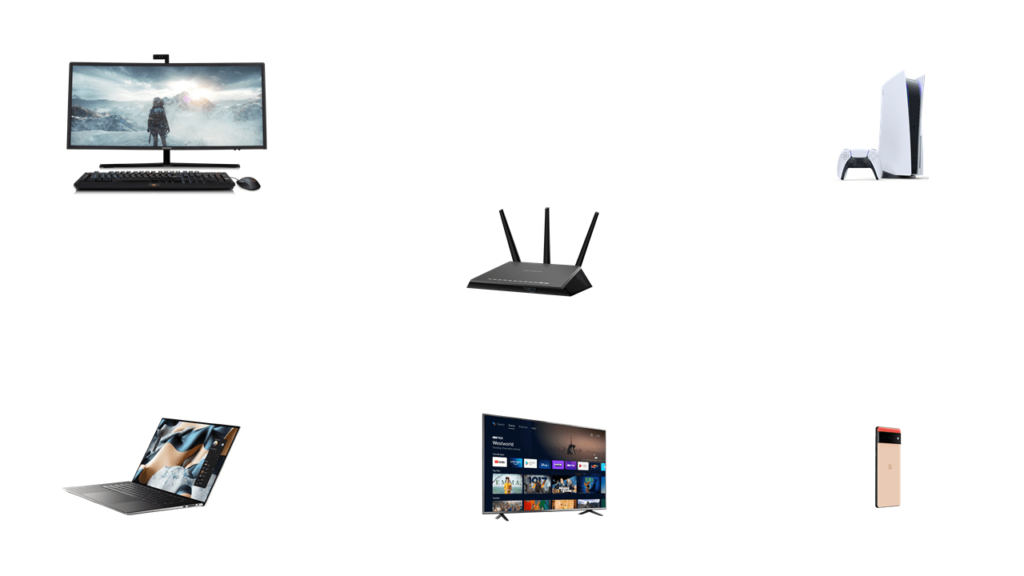
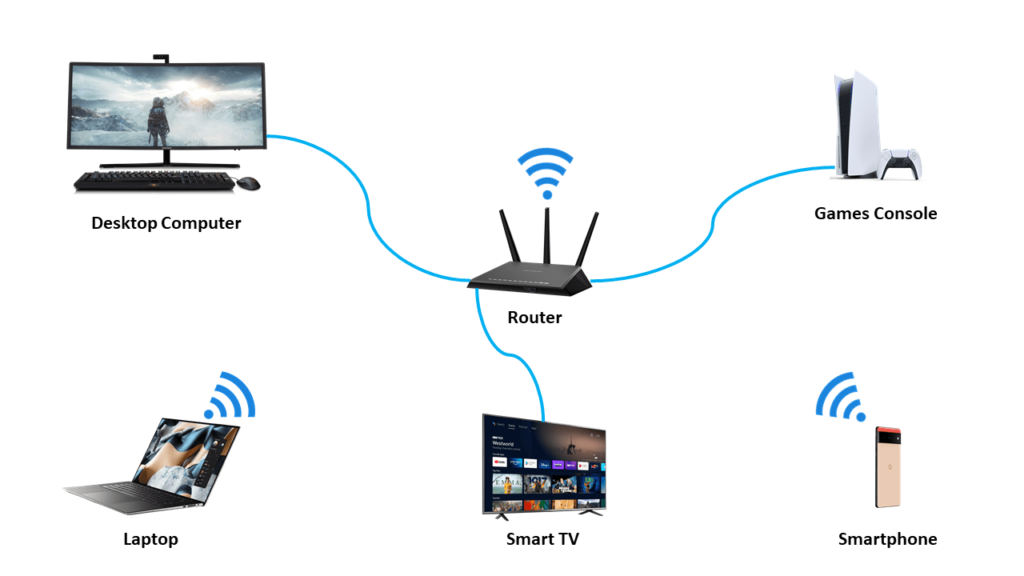
- The image here shows the devices that might make up a home network.
- Save the image by right clicking on it and then open it up in PowerPoint.
- Then label the devices using the list below.
- Desktop Computer
- Smartphone
- Router
- Smart TV
- Games Console
- Laptop
Ethernet Cables
- We can connect up devices on a network using cables called ethernet cables. You’ve probably got one coming out of the back of the computer you are using right now.
- Ethernet cables are plugged into ethernet ports on devices.
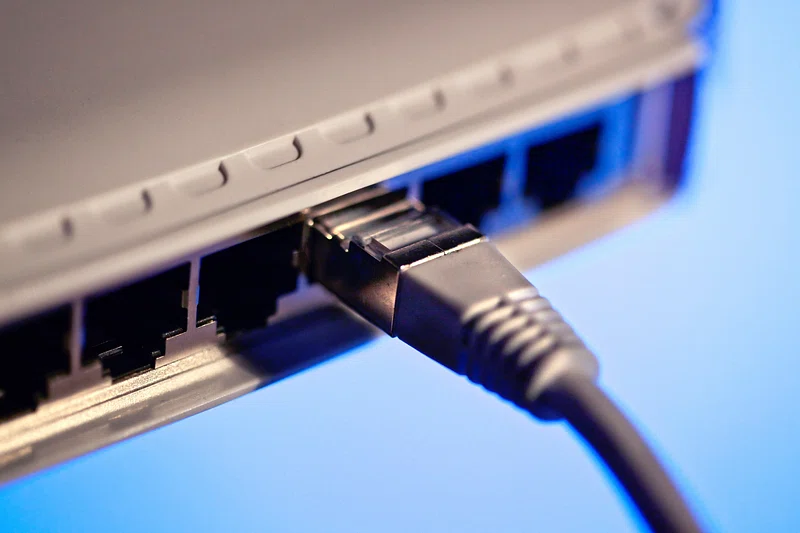
- On your diagram, draw on lines that link the ethernet ports on the Desktop Computer, Smart TV and Games Console to the Router.
- Think about why these devices should be connected by cables and not wirelessly.
Wi-Fi
- Some devices connect wirelessly. Wi-Fi stands for Wireless Fidelity.
- Wi-Fi uses radio waves to allow devices to communicate with each other.
- On your diagram, add in a Wi-Fi icon to indicate that the Router is able to connect to the Smartphone and Laptop using WiFi.
Other Connection Technologies
- Devices can connect with each other using a few other methods. Use the Web to try and answer the following questions:
- What is Bluetooth?
- What is the range of Bluetooth communications?
- What are Fibre Optic cables?
- What does 5G mean?
Your diagram should probably look something like this now:
🖧 Packets
- Let’s imagine that the desktop computer is going to send an image file to the laptop.
- The image is called tree.jpg and has a size of 1.5MB (That’s 1.5 Million bytes).
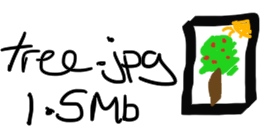
- 1.5 Million bytes is too large to send in one go, so the Desktop Computer needs to break up the file into small chunks called packets.
- Each packet has an average size of about 1.5KB (That’s 1500 bytes).
- The Desktop Computer breaks up the image into packets, and adds some extra data onto the packet as well.
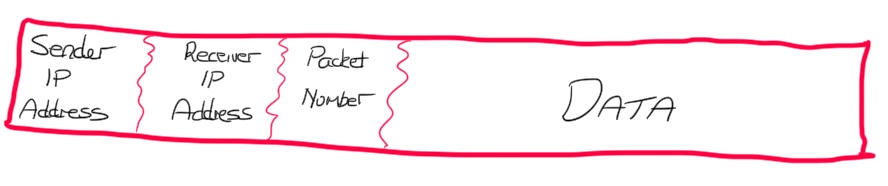
- Each packet is then sent to the router.
- When the router receives a packet, it looks at the receiver’s IP Address, and then sends the packet onto the correct device on the network.
- The receiving device (in this case the laptop) receives all these packets, and uses the packet number to assemble them all in the correct order.
- Sometimes a packet get’s lost or destroyed on the way. The receiving device will know that a packet is missing, and can use the sender’s IP address to ask for the packet to be sent again.
🖧 A Presentation on Networks
- Imagine you had to try and explain how an image is sent over a network, from one device to another.
- Create a presentation using PowerPoint, and the image you drew earlier of a network, to explain how a file is sent over a network.
- Your teacher will award you a silver, gold or platinum badge, depending on the clarity of your presentation.
In this lesson, you…
- Explored how a network works including different types of network.
- Looked at routers and packets and how they are used to transport data on a network.
Next lesson, you will…
- Use Scratch to model a network including how packets move around a network.
- Use our DNS model from last lesson to include it in our network.
🏅 Level up
🥇 Level 1
- Presentation shows some information on how a file is sent over a network.
🥈 Level 2
- Presentation shows clearly how a file is sent over a network.
🥉 Level 3
- Presentation shows clearly how a file is sent over a network with extra detail and information.