🎯 Learning Objectives
- Use variables to store and manipulate data
- Develop further understanding that programming bridges the gap between algorithmic solutions and computers
💬 Key Vocabulary
- decomposition
- algorithms
- flowcharts
- variable
- iteration
- flowol
📖 Variables
Computer programs use variables to store data.
Variables could be used to store the score in a game, the number of cars in a car park or the cost of items on a till. They work in a similar way to algebra, where a letter in your code can stand for a number.

To create a variable in Flowol you need to follow the steps in the screenshots below:
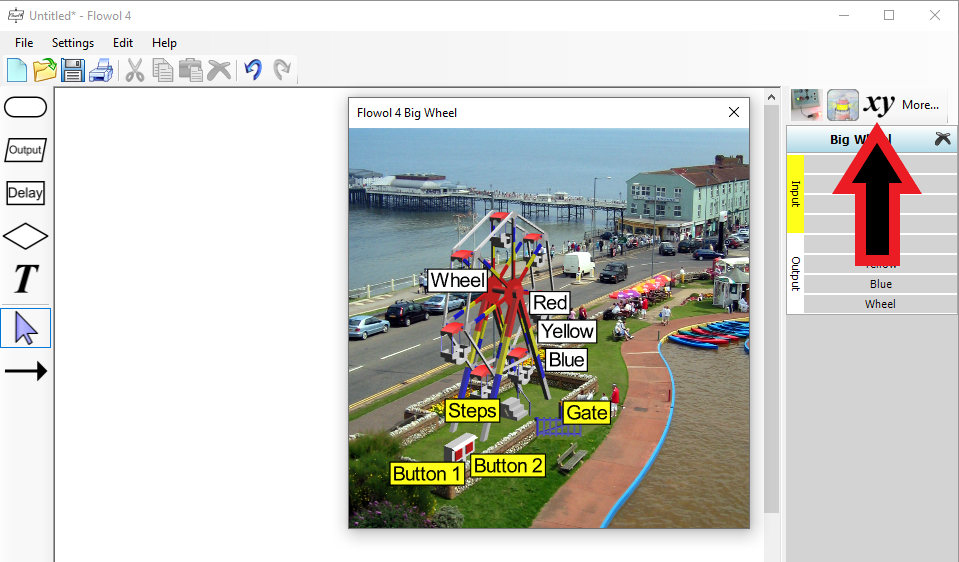
xy button in the top right
🥇 Level 1 – Ride Counter
Open the Big Wheel mimic, you may have used it before back in Lesson 2.

Take some time to understand the four different inputs of the mimic, these are the ones in yellow.
Button 1 and Button 2 are normal inputs but, when the wheel is rotating, you may notice that the Steps input flashes on each time a seat passes over the steps.
The Steps and Gate inputs are called virtual inputs. They cannot be changed by directly clicking on the mimic, but are changed by features within the mimic itself.
First we need to use Button 2 to start the ride, use the flowchart below to do this:
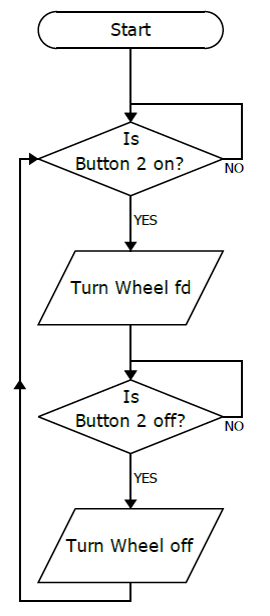
The ride owner now wants to know how many times the wheel is turned on using the button.
Use variable x to count how many times the ride is turned on. You should use the increment Let instruction along with the decision blocks from the screenshot above.
When your flowchart adds one to x each time the button is pressed, screenshot the flowchart and upload it to Teams.
🥈 Level 2 – Spin & Stop
Construct the following counting program to increase the variable y each time a seat passes the steps, i.e. each time the virtual input goes off and on
Since there are 7 seats, each rotation of the wheel should increase the variable y by 7.
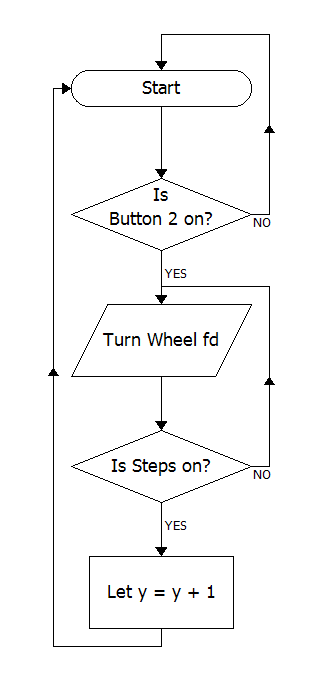
- Now modify your program by introducing a decision symbol, to stop the wheel automatically after it has rotated 3 times.
- Now that you have learned how to use the Steps input, create a subroutine which rotates the wheel and stops briefly at each of the seven seats for passengers to get on or off. You will need to use a decision block to check if Steps is on, if it is you should stop the wheel for a small period of time.
The two tasks above must be complete for Level 2, screenshot and upload evidence to Teams.
🥉 Level 3 – Spinning Gently
To keep passengers safe the wheel should gradually speed up and slow down when it starts and stops.
While it is possible to change the speed with a sequence of output symbols with speeds of 10%, 20%, 30% etc. it is much more compact and reusable to employ a variable.
Create the new variable z and use a speed of z% in the output symbols in the subroutines.
When running the program, observe the Wheel motor in the status panel. The size of the bar indicates the speed of the motor.
You should modify the flowchart below that you created at the start to do this:
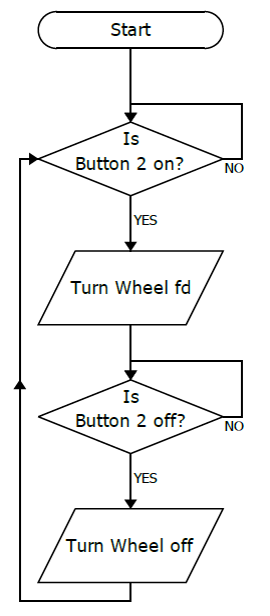
When turning it on use decision blocks to see if the z variable has reached 100. If it has not then increase z by 10 and wait 0.2 seconds.
When turning it off use decision blocks to see if the z variable has reached 0. If it has not then decrease z by 10 and wait 0.2 seconds. When it has reached 0 turn it off completely.
When complete you have finished the Level 3 task, upload a screenshot of your work to Teams.
In this lesson, you…
- Used variables to store data and use it in other parts of your programs.
Next lesson, you will…
- Use all the skills you have learnt over this topic to complete an assessment.
🏅 Level up
🥇 Level 1
- Complete the Level 1 – Ride Counter task.
🥈 Level 2
- Complete the Level 2 – Stop & Go task.
🥉 Level 3
- Complete the Level 3 – Spinning Gently task.
- Then screenshot your flowcharts and upload to Teams.